
Freshflo for Mac
Your download has started.
Four quick steps and you're talking. Keep this page open; it walks you through.
Freshflo is a Mac app. Send yourself this link and open it on your Mac. The download starts there.
-
1
Drag it into Applications.
Open Freshflo.dmg from your Downloads (bottom right of your Dock, or the arrow in your browser). Drag the Freshflo icon onto the Applications folder.
Forgot this step? Freshflo offers to move itself when you open it.
-
2
Open it. If macOS asks, say yes.
Freshflo is in public beta and not yet notarized by Apple, so the first time you open it macOS shows a warning. It's a one-time step:
- Open Freshflo from Applications. If you see “Freshflo” Not Opened, click Done.
- Open System Settings → Privacy & Security and scroll down.
- Next to “Freshflo” was blocked, click Open Anyway, then confirm with your password or Touch ID.
-
3
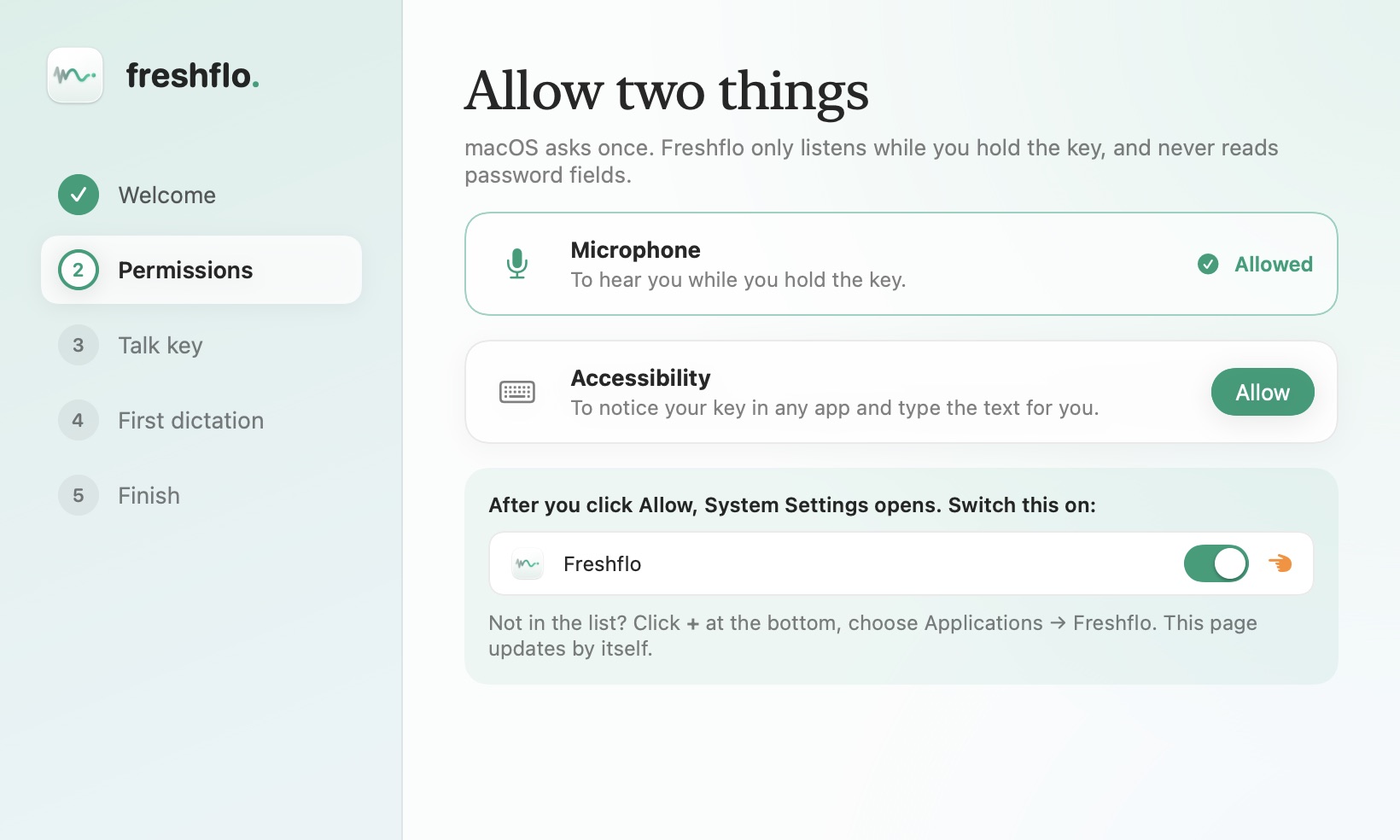
Allow two things.
Microphone, so Freshflo can hear you, and Accessibility, so it can type into other apps. The setup shows you each switch and moves on by itself.
Nothing you say is stored or sent anywhere unless you choose a cloud engine. Privacy
-
4
Hold fn and talk.
Click into any text box: Notes, Slack, Gmail, Cursor. Hold fn, say it however it comes out, then let go. Clean text appears where your cursor is.
Try this in Notes: “um so remind me to call the bank tomorrow, no wait, Friday.”
Want hands-free? Tap fn once, talk, tap again. Updates install themselves from now on.
Stuck?